How to Schedule and Confirm Your First Session on Headway
Last reviewed: October 30, 2026
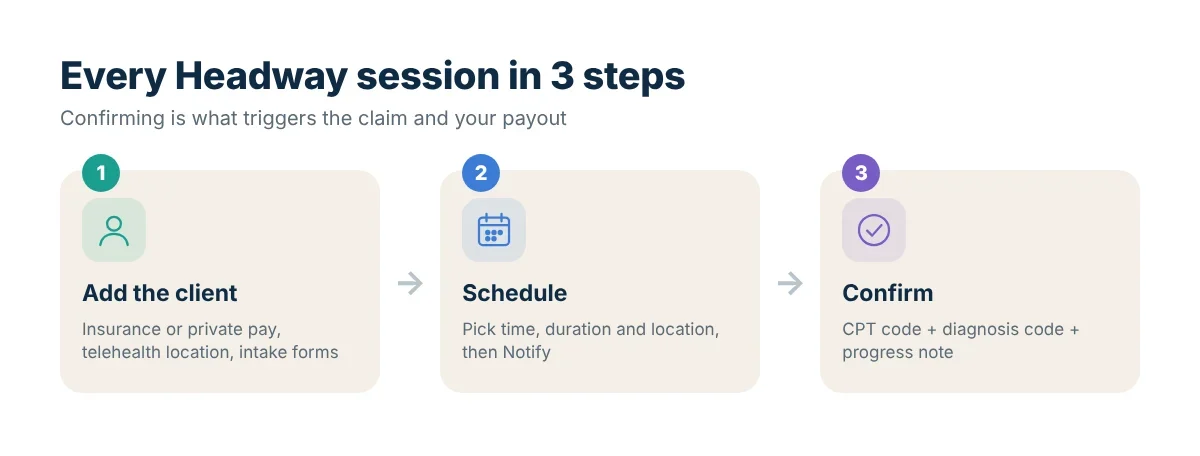
Once your first insurance carrier approves you, you can start seeing clients through Headway. Headway handles billing and claims, but three things are on you: adding the client correctly, scheduling the session and confirming it afterwards. Miss the last step and you will not get paid.
Step 1: Add the client
- Log in to Sigmund and open the Clients tab.
- Click “Add client(s)”. To bring over several existing clients at once, use the three-dot menu to import them.
- Enter the client’s first and last name, email and phone number.
- Choose billing type: insurance or private pay.
- Set the client’s telehealth location. This must be in a state where you are credentialed or the session cannot be confirmed later.
- Choose which assessments to send, if any.
- Choose whether to notify the client. If you do, Headway emails them a welcome message and an intake form where they add insurance and payment details.
Tip: ask clients to finish their intake before the first appointment so Headway can verify benefits and show them an estimated cost.
Step 2: Schedule the session
- Open the Calendar tab.
- Click a time slot or the “Add” button at the top left.
- Select the client, then set date, time, duration and location (telehealth or office).
- Click “Add”, then “Notify” to email the client the appointment details.
If you sync Sigmund with Google Calendar or Outlook, double-check that the session appears in both.
Step 3: Hold the session
For telehealth, Headway’s EHR includes embedded video. You can also use any HIPAA-compliant platform you prefer. Make sure you know where the client is physically located during the session, because licensure and insurance rules depend on it.
Step 4: Confirm the session
This is the step that triggers the claim and your payout.
- Click the past session in your calendar.
- Click “Confirm Details”.
- Add the CPT code (for example, 90791 for an intake assessment). See our CPT code guide.
- Add the diagnosis code (ICD-10).
- Add your progress note, or use Headway’s note tools.
- Save.
Headway then submits the claim a few days later and the session joins your next payout. Sessions confirmed on the 1st–15th are paid on the last day of the month; those confirmed on the 16th–end are paid on the 15th of next month.
Common first-session mistakes
- Not confirming the same day. Late confirmation can push payment back two weeks.
- Wrong telehealth location. The session cannot be confirmed if the client’s location is outside your credentialed states.
- Missing insurance details. The client may receive a full-cost bill if their coverage cannot be verified.
- Using the wrong CPT code for session length.
- No informed consent on file. Use the Form library to send consent and practice policies before session one.
Cancellations and no-shows
Set your cancellation policy in your practice forms. Late-cancellation and no-show fees are paid out to you only after Headway collects them from the client. Some plans, such as certain Medicare Advantage plans, restrict cancellation fees.
FAQ
When can I see my first insurance client?
After the carrier approves you, as shown on your Insurance Status page.
Can I add clients I already see privately?
Yes. Headway lets you add clients you saw before joining, including through bulk import.
What if I forget to confirm a session?
Confirm it as soon as you notice. It will be included in the next payout after confirmation.
Source: First session with a client on Headway.